
Getting comfortable with your controller can make a significant difference to your gaming experience. Incorrect button mapping, unresponsive controls, connection problems, and input delays can make even familiar games frustrating. Understanding Controller Settings HSSGameStick can help you configure supported controls, troubleshoot common issues, and create a setup that feels natural.
Available settings may vary depending on your GameStick model, controller type, and installed software. This guide explains how to check your controller, adjust available options, improve responsiveness, and resolve common problems without assuming every device offers identical features.
What Are Controller Settings HSSGameStick?
Controller settings determine how a connected gamepad communicates with your gaming device and how its buttons and directional controls work within a game. Depending on the system, these options may appear in the main settings menu, an emulator configuration menu, or an individual game’s control settings.
The purpose of Controller Settings HSSGameStick is to help you understand the available input options and make sure your controls perform the actions you expect.
Common controller-related options may include:
- Button mapping: Assigning available buttons to specific actions.
- Directional controls: Configuring the directional pad or analog stick when supported.
- Controller recognition: Checking whether the device detects the connected gamepad.
- Player assignment: Selecting a controller for a particular player, if supported.
- Game-specific controls: Adjusting the layout for a particular game or emulator when available.
How Controller Settings Affect Your Gaming Experience
Correct controller configuration can make games easier to play by ensuring that buttons and directional inputs behave as expected. Controller Settings HSSGameStick can also help you identify whether a problem comes from the controller, its connection, the game’s configuration, or the gaming device itself.
How to Access Controller Settings on HSSGameStick
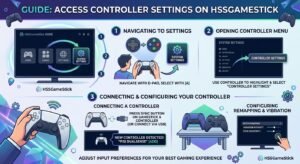
The exact menu path depends on the GameStick version and the software it uses. Some systems provide controller options through the main interface, while others handle input configuration inside an emulator or game.
To access Controller Settings HSSGameStick, connect your controller and confirm that the main menu responds to its buttons. Then look for settings related to controllers, input, gamepads, or controls.
Navigating the Controller Settings Menu
Follow these general steps to locate the available options:
- Turn on your HSSGameStick and television.
- Make sure the controller is powered on and connected.
- Use the controller or another supported input method to open the main menu.
- Look for a settings or configuration section.
- Check for controller, input, or game-specific control options.
- Read the available descriptions before changing anything.
- Test one adjustment at a time to determine whether it improves control.
Connecting and Configuring Your Controller
First, identify how your controller connects. Depending on the hardware, Controller Settings HSSGameStick may use a USB cable, a wireless USB receiver, or another supported connection method.
For a wired controller, connect the cable securely to a compatible port. For a wireless model, check the batteries, power switch, receiver, and pairing instructions supplied with the device.
Once connected, test the directional controls and main buttons in the menu. If they work there but not inside a game, the problem may involve the game’s control configuration rather than the physical connection.
Best Controller Settings HSSGameStick for Better Gaming
There is no single ideal controller configuration for every player or game. The best setup is one that works reliably, matches the game’s control scheme, and feels comfortable during play.
Start with the default configuration whenever possible. Change only the settings you understand and can test, and keep track of the original values so you can reverse an adjustment if necessary.
Choosing the Right Button Layout
A clear button layout helps you remember commands and respond consistently during gameplay. If your system or game supports button remapping, use Controller Settings HSSGameStick to place frequently used actions where they feel comfortable.
Before changing the layout, test the default controls. Some retro games use button arrangements that differ from modern games, and changing them without checking the game’s instructions can make controls more confusing.
Adjusting Available Controller Response Options
Some controllers and games provide sensitivity, deadzone, or response settings, but these features are not guaranteed on every HSSGameStick.
If a sensitivity setting is available, make a small adjustment and test Controller Settings HSSGameStick. Higher sensitivity may make directional movement feel faster, while lower sensitivity may offer more controlled movement in games that use analog input.
A deadzone is an area around the center of an analog stick in which small movements may be ignored. If your game offers a deadzone setting, increasing it slightly may help with minor unwanted movement. However, setting it too high can make small movements harder to register.
Customizing Controls for Different Games
Different game types place different demands on a controller. If per-game or per-emulator configurations are supported, you can adjust the controls to suit the games you play most often.
- Platform games: Prioritize reliable directional movement and comfortable access to jump and action buttons.
- Fighting games: Make sure frequently used attack buttons are easy to reach and register correctly.
- Racing games: Test steering and acceleration inputs for predictable responses.
- Sports games: Confirm that passing, shooting, movement, and other important actions use the expected buttons.
- Classic arcade games: Check the original control instructions when a game uses an unfamiliar layout.
How to Configure HSSGameStick Controller Settings
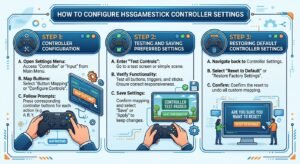
A careful setup process can help you identify the cause of a problem without making unnecessary changes. Before adjusting the controls, confirm that the controller is connected and that Controller Settings HSSGameStick buttons work in the main interface.
Step-by-Step Controller Configuration
Use this practical process to configure the options available on your device:
- Check the connection. Confirm that the controller is powered and connected through the supported method.
- Test the default controls. Navigate the main menu and check the primary buttons and directional inputs.
- Open the relevant settings. Look for controller options in the system, game, or emulator menu.
- Review the current mapping. Make sure each button corresponds to the intended action.
- Change one setting. If an adjustment is necessary, change only one option at a time.
- Test it in the game. Check the result using a familiar level or a safe practice area.
- Keep or reverse the change. Retain the adjustment only if it improves the controls.
Testing and Saving Your Preferred Settings
Testing is essential because a setting that feels comfortable in a menu may behave differently during a game.
Try the controls in a familiar section of the game. Check whether movement is consistent, important buttons perform the correct actions, and unwanted inputs occur when you are not touching the controller.
If the device or game provides a save or apply option, use Controller Settings HSSGameStick before leaving the settings menu. Some systems save changes automatically, while others require confirmation.
Restoring Default Controller Settings
Restoring the default configuration can help when a recent change has made the controls difficult to use. Before resetting anything, check whether the game or emulator offers a controller-only reset.
A controller reset is preferable when available because a broader system reset may affect unrelated preferences.
If a reset option exists, read its description carefully before confirming. Controller Settings HSSGameStick may restore button assignments, input options, or other settings depending on the software.
Tips for Improving HSSGameStick Controller Performance
Good controller performance depends on more than menu settings. Connection quality, batteries, hardware condition, software compatibility, and the display setup can all affect how responsive a game feels.
How to Reduce Controller Input Lag
Input lag is the delay between an action, such as pressing a button, and the corresponding response on screen. The delay may come from the controller, gaming device, game software, or television.
Try these troubleshooting steps:
- Use fresh batteries if your wireless controller is losing power.
- Make sure the wireless receiver is securely connected.
- Reduce unnecessary distance between the controller and its receiver.
- Close or stop unnecessary background activity if the device provides that option.
- Check whether your television has a Game Mode or similar low-latency display setting.
- Test another game to determine whether the delay affects the entire system or only one title.
Not every GameStick supports advanced performance controls, and changing controller settings alone cannot eliminate every source of input lag. Test each change individually so you can identify what actually helps.
Improving Controller Connectivity and Responsiveness
When reviewing Controller Settings HSSGameStick, start with the simplest connection checks if your controller responds inconsistently. Confirm that it has power, reconnect the cable or wireless receiver, and follow the manufacturer’s pairing procedure if pairing is required.
For wireless controllers, avoid placing the receiver behind large metal objects or close to sources of wireless interference when practical. Keep the controller within a reasonable range of the receiver.
Maintaining Your Controller for Smooth Gameplay
Regular maintenance can help prevent avoidable control problems.
- Keep the controller and buttons free from dust, dirt, and liquid.
- Replace weak batteries and remove batteries from stored devices when appropriate.
- Inspect cables and USB connectors for visible damage.
- Avoid pulling a cable to disconnect the controller.
- Store the controller in a dry, safe location.
- Do not force buttons or directional controls that feel stuck.
Common HSSGameStick Controller Problems and Solutions
Controller problems can arise from a weak power supply, a loose receiver, incorrect button mapping, unsupported hardware, or a fault in the controller itself. Work through the following checks before changing multiple settings.
How to Fix Controller Connection Issues
If your controller is not detected, use this checklist:
- Check that the controller is switched on.
- Replace weak batteries if it uses them.
- Reconnect its USB cable or wireless receiver.
- Follow the correct pairing procedure for the model.
- Restart the GameStick and reconnect the controller.
- Confirm that the controller is compatible with the device.
- Test another supported controller if possible.
If the controller still does not connect, check the device’s instructions for its specific connection method. Do not assume that every wireless controller can connect directly without a receiver.
Troubleshooting Unresponsive Controller Buttons
When one or more buttons stop responding, determine whether the problem occurs everywhere or only in one game.
If the buttons work in the main menu but not in a particular game, inspect the game’s control mapping or emulator settings. If the same buttons fail throughout the system, check the controller’s physical condition and connection.
If remapping is supported, review the assigned actions and correct any unintended changes. Save the configuration if required, then test the buttons again.
Resolving Controller Lag and Disconnection Problems
Lag and disconnections may have different causes, so treat them as separate issues. For lag, check batteries, wireless distance, display settings, and whether the problem occurs in multiple games.
For disconnections, inspect the cable or receiver, reconnect the device, and follow the correct pairing procedure. If the issue started immediately after changing a setting, reverse that adjustment and test again.
HSSGameStick Controller Settings for Different Game Types
The most suitable controller layout depends on the game’s original controls and the features available on your particular device. Start by confirming the default mapping, then make small changes if the game supports them.
Controller Settings for Classic Arcade Games
Classic arcade titles often use simple directional movement and a limited number of action buttons. The most important step is to confirm that the controller mapping matches the game’s intended controls.
If a game behaves differently from what you expect, check the instructions shown in the game or Controller Settings HSSGameStick emulator. Some titles use different button arrangements, and not every game supports the same type of controller input.
Choosing Controls for Action and Platform Games
Action and platform games often require consistent movement and quick access to essential buttons. Confirm that directional inputs, jumping, attacking, and other primary actions work reliably.
If analog sensitivity or deadzone options are available, adjust them gradually and test the results. For games that use only a directional pad, analog-stick settings may have no effect.
Choose a layout that feels comfortable without causing important actions to overlap or become difficult to remember. A simple, consistent configuration is often more useful than a complicated setup.
Optimizing Controls for Racing and Sports Games
Racing games benefit from predictable steering and clearly assigned acceleration and braking controls. If analog steering is supported, test small movements as well as full directional input. If the game uses digital controls, focus on accurate button mapping instead.
Sports games may require quick access to several actions, such as passing, shooting, changing players, or moving around the field. Confirm the mapping within the game and test the most frequently used actions before starting a long session.
Read more: Investment RedandWhiteMagz: Complete Guide, Tips & Insights
How to Reset HSSGameStick Controller Settings
A reset may be useful if incorrect button assignments or recent changes have made the controller difficult to use. The safest approach is to identify the scope of the reset before confirming Controller Settings HSSGameStick.
When to Reset Your Controller Settings
Consider resetting the controller configuration when:
- Buttons perform unexpected actions after remapping.
- You cannot remember which control options you changed.
- A configuration change has made the game difficult to control.
- The available controller settings no longer match the expected layout.
A reset is not the first solution for every controller problem. If the controller is disconnected, has weak batteries, or has damaged buttons, restoring software settings may not solve the underlying issue.
Steps to Restore the Default Configuration
If your game or emulator provides a controller reset option, follow these general steps:
- Open the relevant controller or input configuration menu.
- Find the option that restores the default controller mapping, if available.
- Read the confirmation message to understand which settings will be affected.
- Confirm the reset only if it applies to the settings you intend to restore.
- Test the controller using the default layout.
- Make any necessary adjustments one at a time.
Menu names and reset procedures vary. If no controller-specific reset is available, consult the instructions for your GameStick before attempting a broader system reset.
Final Thoughts
Learning how to manage Controller Settings HSSGameStick can help you build a more comfortable and reliable gaming setup. Start by checking the connection, testing the default button layout, and exploring only the configuration options supported by your device.
Make one change at a time, test the result in a familiar game, and keep track of settings that work well. If you experience lag, disconnections, or unresponsive buttons, investigate the connection and hardware as well as the software configuration. Remember that HSSGameStick versions may differ. Using instructions that match your model is more reliable than following a menu path or copying settings that may not exist on your device.
FAQs About Controller Settings HSSGameStick
1. How do I access Controller Settings HSSGameStick?
Connect your controller, open the main menu, and look for settings related to controllers, input, or gamepads. Some versions place these options inside individual games or emulator menus.
2. Can I customize button mapping on HSSGameStick?
Button remapping may be available through the system, an emulator, or an individual game. However, support varies between versions and games.
3. How can I fix controller lag on HSSGameStick?
Start by checking the controller’s power, connection, receiver placement, and television display settings. Test another game to see whether the delay is widespread.
4. Why is my HSSGameStick controller not responding?
Possible causes include weak batteries, a disconnected receiver, incorrect pairing, unsupported hardware, incorrect mapping, or a faulty controller.
5. How do I reset HSSGameStick controller settings?
If your software provides a controller-specific reset option, use Controller Settings HSSGameStick after checking what it will restore. If no such option exists, consult your device’s instructions.